Talking Head & Interview Editing
Edit Talking Heads and Interviews Without Touching a Timeline
You’ve got a 90-minute interview. It’s mostly good, but there’s 20 minutes of filler, three tangents that go nowhere, and your guest said “um” 347 times. In a traditional editor, you’re looking at a full day of scrubbing, cutting, and rearranging.
Don’t click through menus. Just tell ChatCut what you want.
Upload the raw file. ChatCut transcribes it, identifies each speaker, and gives you a text-based view of your entire recording. From there, you edit with words, not waveforms.
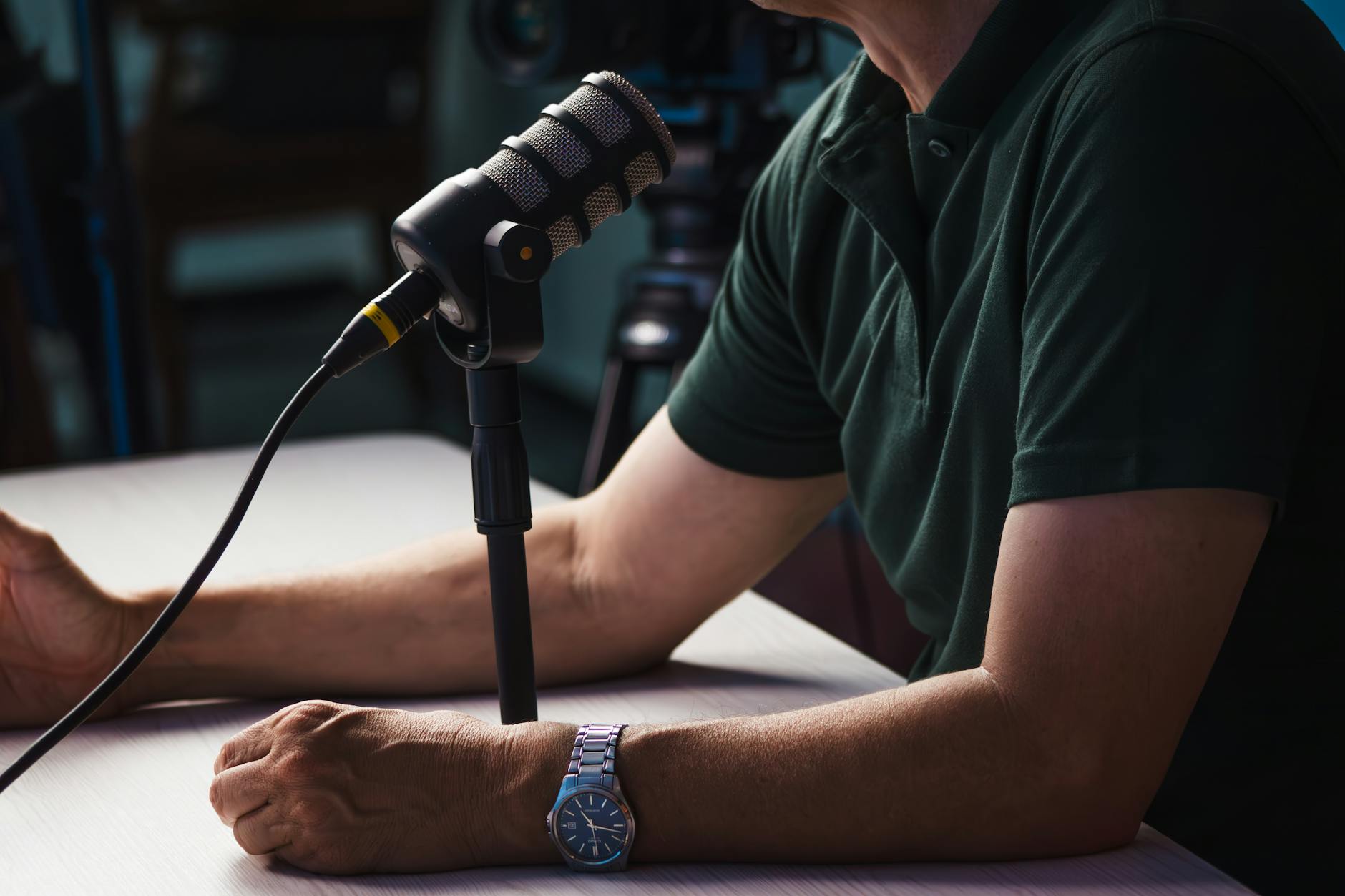
Who this is for
This workflow fits anyone who records people talking on camera: podcasters, YouTubers, legal video creators, interview producers, livestream editors. If your raw footage is 30 minutes to 2 hours of someone speaking, this is your fastest path to a finished cut.
Law content creators use it to trim courtroom commentary videos from 45 minutes down to tight 12-minute episodes. Interview producers pull highlight reels for Bilibili and YouTube without re-watching the full session. Livestream editors clean up VODs by removing dead air, technical issues, and off-topic tangents.
The workflow
Upload your raw footage
Drop in your talking head, interview, podcast recording, or livestream VOD. Files from 30 minutes to 2+ hours work well.
AI transcribes and identifies speakers
ChatCut generates a full transcript with speaker labels. You can see exactly who said what, and when.
Clean up with natural language
Tell the AI what to fix. Remove filler words, cut tangents, reorder sections, tighten pacing, all through plain English prompts.
Add polish
Drop in captions, motion graphics, background music, and intro/outro sequences. The AI handles placement and timing.
Export
Render your finished video. What started as a raw 90-minute recording is now a clean, watchable episode.
What you can say to the AI
The real power here is that you edit by describing what you want. No timeline scrubbing. No menu diving. Just say what you need.
ChatCut analyzes the transcript, identifies low-value segments (filler, repetition, tangents), removes them, and tightens the edit to hit your target duration.
The AI scans the transcript for filler patterns across both speakers and cuts them out, adjusting surrounding audio for clean transitions.
ChatCut searches the transcript for pricing-related segments, lifts the best section, and moves it to the beginning of the video as a cold open.
The AI selects the most engaging moments (strong opinions, clear explanations, emotional beats) and assembles a short-form highlight video optimized for Bilibili's format.
Editing by transcript, not by timeline
Traditional video editing forces you to think in frames and timecodes. You scrub through footage, mark in/out points, drag clips around, and hope you didn’t cut someone off mid-sentence.
ChatCut flips this. Because the AI understands the transcript, you can make structural edits the way a writer would: move paragraphs, cut sentences, reorder arguments. The video follows the text.
Want to swap two sections? Just say “move the segment about competition before the pricing discussion.” Want to remove every time your guest goes off on a tangent? Say “cut any sections where the topic drifts from the main question.” The AI reads the content, not just the waveform.
This is especially useful for long-form content. A 2-hour livestream has too much material to scrub manually. But the transcript makes it searchable. You can find exactly the moment you need and build your edit around it.
Adding production value
Once your narrative structure is tight, you can layer on the polish:
- Captions – Auto-generated from the transcript, styled and timed. Essential for social clips where most viewers watch without sound.
- Motion graphics – Lower thirds for speaker names, topic cards between sections, animated callouts for key points.
- Music – AI-selected background tracks that match your content’s energy without overpowering the dialogue.
- Intro and outro – Branded sequences that bookend your episode consistently across every upload.
You describe the edit. ChatCut executes it. You don’t need to manually position a single text layer or keyframe a single transition.
Why this works for regular publishing
If you’re putting out weekly episodes (a podcast, a YouTube show, a recurring interview series), the bottleneck isn’t recording. It’s editing. Every week, you sit down with raw footage and spend hours turning it into something watchable.
This workflow compresses that editing time dramatically. Upload, tell the AI what you want, review the result, export. The consistency matters too: your captions look the same every episode, your intros match, your pacing stays tight.
Creators who’ve moved to this workflow report spending 80-90% less time in post-production. That’s not because the AI makes perfect edits every time. It’s because the AI gets you to 90% in minutes, and the remaining tweaks take a fraction of the time a full manual edit would.
Best practices
Give the AI a target duration. Saying “cut this to 12 minutes” gives the AI a clear constraint. It’ll make smarter decisions about what to keep and what to drop than if you just say “make it shorter.”
Name your segments. If your interview covers specific topics, mention them. “Keep the sections on hiring, culture, and fundraising. Cut everything else.” The more specific you are, the better the result.
Review the transcript first. Skim the auto-generated transcript before giving edit instructions. It takes two minutes and helps you write better prompts because you know what’s actually in the footage.
Use multiple passes. Start with structural edits (remove sections, reorder), then move to cleanup (filler words, pauses), then add polish (captions, music, graphics). Each pass builds on the last.
If you’re producing social media clips from your interviews, the same workflow applies. Edit the long-form version first, then pull highlights for vertical platforms.
Raw footage in, finished episode out. That’s the whole idea.